Available in Free and Pro. A reset permanently removes RSS Chimp’s saved configuration when the plugin is deactivated. Do not use it for an ordinary update, a temporary deactivation or a switch between Free and Pro if you want to retain settings.
Before resetting
- Back up your database.
- Record settings and feed URLs used by external services.
- Remember that custom-feed definitions, legacy migration data and review-reminder preferences for this site are removed too.
Perform a reset
- Open RSS Chimp → General → Options.
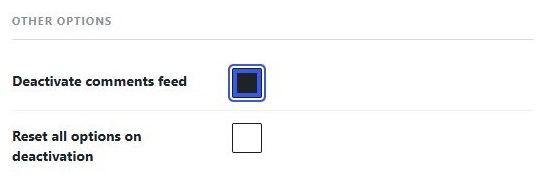
- Enable Reset all options on deactivation under Other options.
- Click Save Changes.
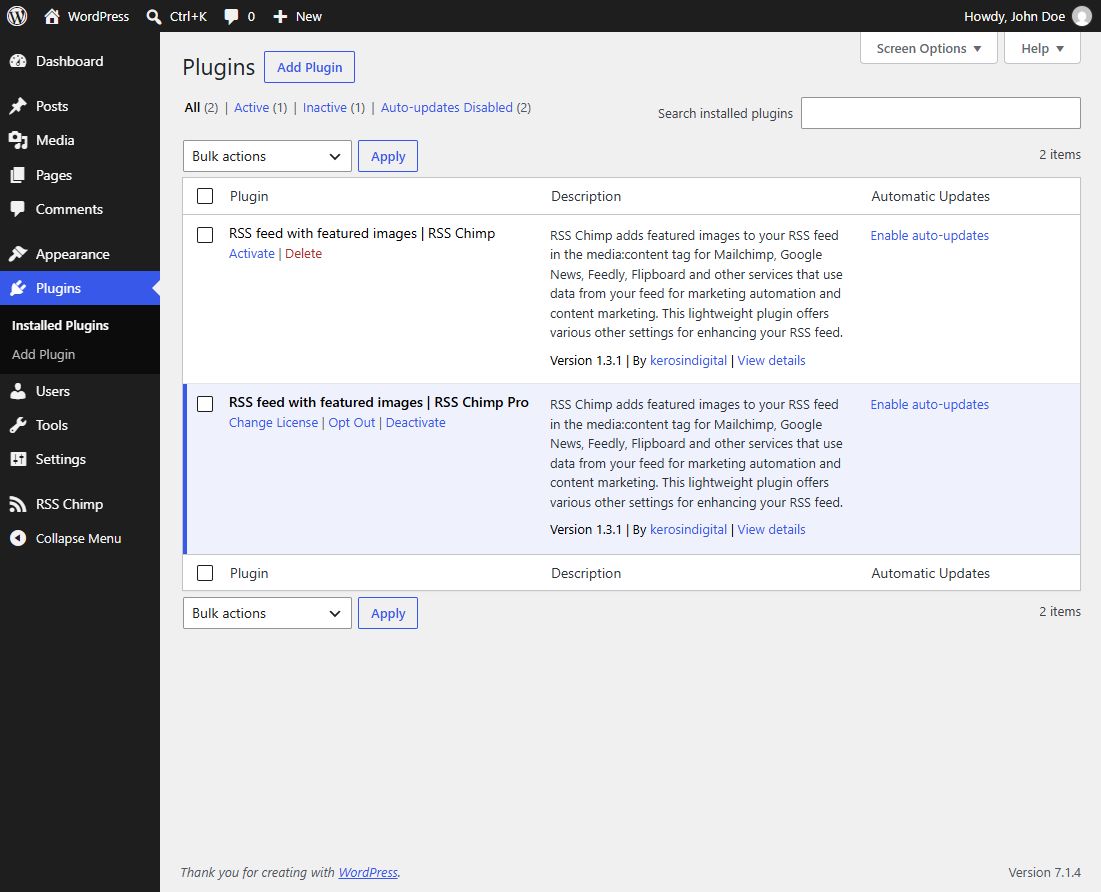
- Open Plugins and deactivate RSS Chimp.
- Reactivate it only if you want to start again with default settings.
What the reset affects
It removes plugin configuration and custom-feed definitions. It does not delete WordPress posts, media attachments or comments. A reset is not the same as cancelling a paid subscription, revoking a license or erasing all data held by a third-party service.
After reactivation
Reconfigure the plugin and recreate any required custom feeds. Check URLs before reconnecting newsletter services. If the reset was accidental, restore the appropriate database backup rather than expecting the migration backup to recover deleted reset data.
Related articles