
Pro feature. RSS Chimp can reuse generated public feed XML to reduce repeated rendering. This requires a persistent WordPress object-cache backend, such as Redis, Memcached or a compatible host-provided service.
Enable caching
- Ask your host to confirm that a persistent object cache is active for WordPress. A page-cache plugin alone is not the same thing.
- Open RSS Chimp → General → Options.
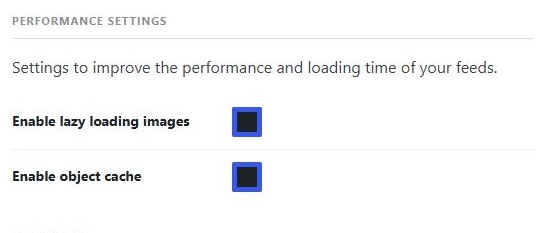
- Enable Enable object cache under Performance Settings and click Save Changes.
- Return to Start and check the Feed cache card. Setup required means the option is selected but WordPress does not report a persistent backend.
Which responses are cached?
The shared cache is for eligible public requests. Signed-in users, cookie-bearing requests, comments feeds and requests with authentication or private/no-cache response directives bypass it. This means a logged-in administrator may not be testing the same caching path as a newsletter service.
When does the cache refresh?
Normal entries have a lifetime of up to one hour. When the publication-delay option is on, the plugin uses a 30-second lifetime. Relevant persisted settings and content changes invalidate feed variants. A subsequent eligible request renders a fresh response.
Changes still not visible?
- Confirm you are opening the intended feed URL.
- Check the saved setting or published post in WordPress.
- Clear any page, server or CDN cache covering that URL.
- Check the raw response before checking a reader or newsletter service, which may keep its own copy.
Saving an unchanged settings page is not a guaranteed cache-clear operation. There is no dedicated manual purge button in RSS Chimp 1.3.1. For contextual feeds, a developer can disable sharing through the rss_chimp_cache_public_feed filter.