
An activation failure can have several causes. The exact PHP error is more useful than a general message that the plugin could not be activated. Work on staging when possible and keep a database and file backup.
Check the installation
- Confirm WordPress is at least 5.9 and PHP at least 7.4 for RSS Chimp 1.3.1.
- Check that you installed the intended complete Free or Pro package.
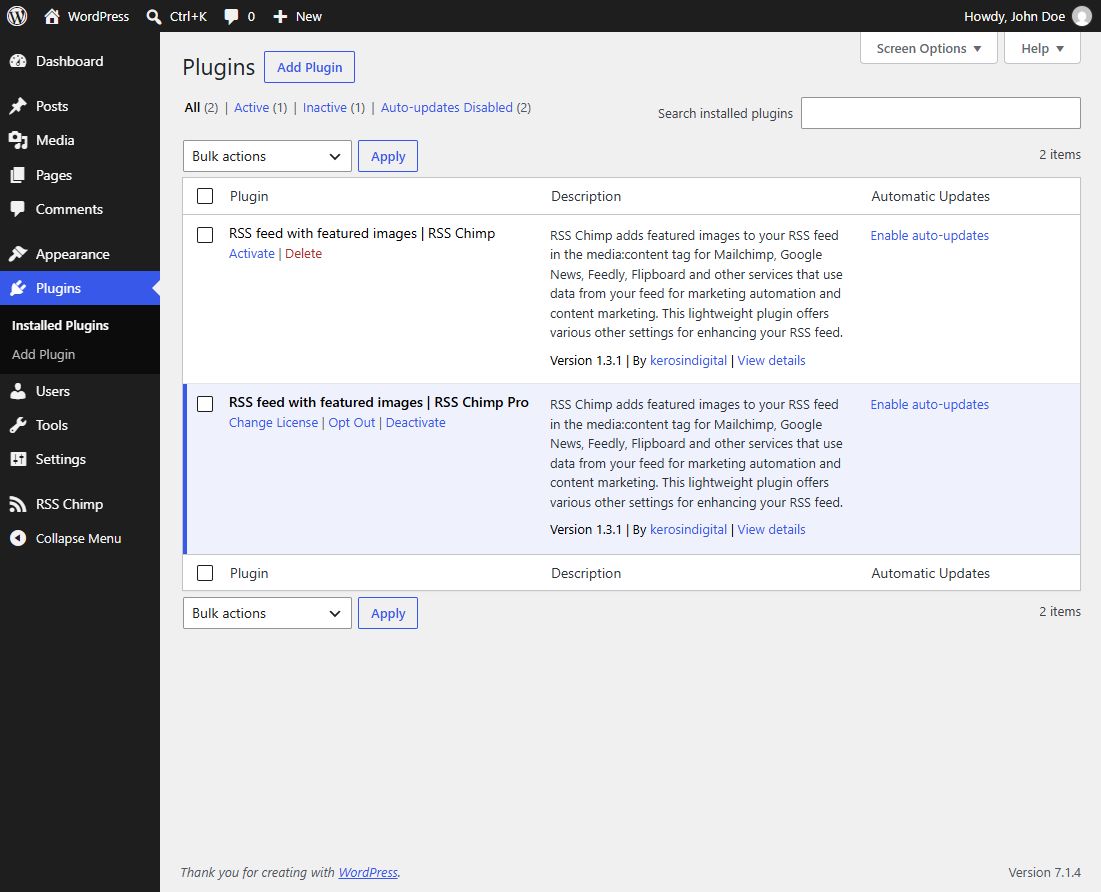
- If both packages are installed, avoid activating them together. Before deactivating the old package, leave Reset all options on deactivation off if settings must be preserved.
- If an upload was interrupted, obtain a fresh ZIP from the official distribution channel and retry the upload.
Find the PHP error
Ask your host for the matching PHP error-log entry, including the timestamp and file/line. If debugging is needed, configure it on staging and keep errors out of public feed output. Do not publish a debug log containing paths, tokens or personal data.
If activation takes the site down
Use WordPress Recovery Mode when available, or ask your host to deactivate the failing plugin. Deactivation for diagnosis should not intentionally reset settings. Restore backups where necessary instead of deleting the database options manually.
Contact support
Include the exact error, PHP and WordPress versions, package/version, and whether this was a clean install, update or Free-to-Pro switch. Do not assume every fatal error is caused by Free being active. Share only the relevant log excerpt with sensitive values removed.