
RSS Chimp extends WordPress feed output. A feed’s final validity also depends on its content, theme and other plugins. Validation and correct image display in a particular newsletter template are separate checks.
Validate the default feed
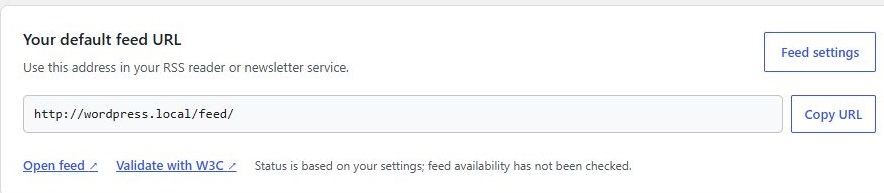
- Open RSS Chimp → Start.
- Confirm that the default feed is enabled, then click Validate with W3C.
- The external W3C service receives the public feed URL. Read its errors and warnings.
- After correcting a problem, clear relevant caches and run the check again.
Validate a custom feed
In Pro, copy the enabled custom feed’s URL from the dashboard. Open the W3C Feed Validation Service and enter that public URL. Do not submit private URLs, access tokens or credentials to an external validator.
Common causes of errors
- A login page, firewall challenge, redirect target or PHP error is returned instead of XML.
- Whitespace or diagnostic output appears before the XML declaration.
- Another plugin adds duplicate namespaces or malformed XML.
- Content or a custom HTML filter introduces invalid output.
- A cached error response is still being served.
How to investigate
Open the raw response and compare the reported line with the validator message. Check the HTTP status and redirects. Investigate plugin conflicts on staging. A warning is not always a fatal parsing error, so report the exact message when asking for help. A valid feed does not guarantee identical rendering in every reader.