
RSS Chimp lets you define a logo for your RSS channel. This image appears next to your feed name in feed readers like Feedly and Inoreader, and helps subscribers recognize your content at a glance. The channel logo follows the RSS 2.0 specification.
How to set the feed logo
- Go to RSS Chimp → Settings → General → Options
- Under Preferred logo, choose one of the four options below.
- If you select Custom image, click Select logo and choose an image from your media library.
- Save settings.
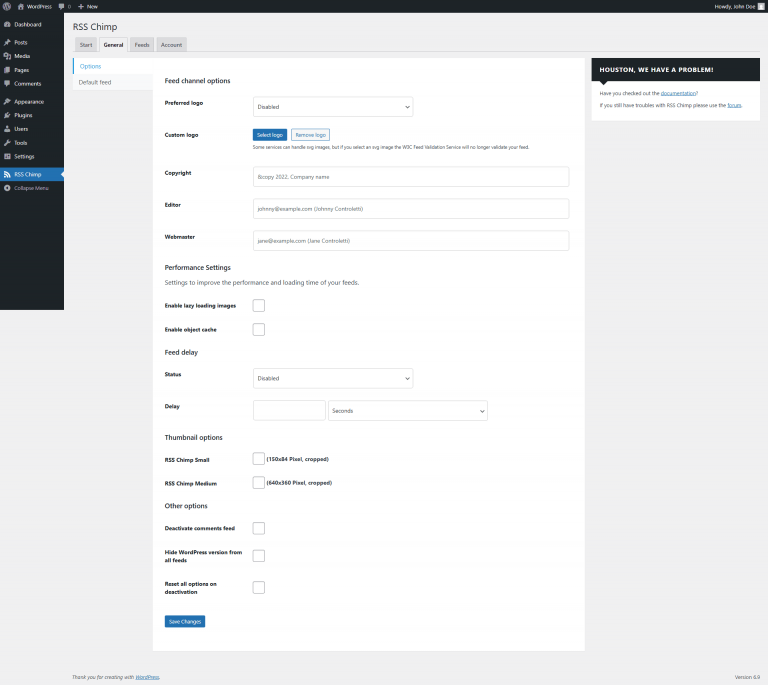
Go to RSS Chimp → Settings → General → Options
Under "Preferred logo", choose the option you want to use as your feed logo and save the settings. Specify a custom image with "Select logo" if necessary.
Available options
Disabled
No logo is added to your feed. Use this if you don’t want a channel image.
Favicon (Site icon)
RSS Chimp uses your site’s favicon as the feed logo. You can set or change it under Appearance → Customize → Site Identity → Site Icon.
Note: favicons are typically 32×32px or 64×64px. They will display in feed readers, but a larger dedicated image looks better at the sizes most readers use.
Site logo
RSS Chimp uses your theme’s site logo. This requires your theme to support a custom logo, which you can usually set under Appearance → Customize → Site Identity → Logo.
Custom image
Upload or select a dedicated image via the media picker in RSS Chimp settings.
Recommended: square format, at least 512×512px, PNG or JPEG. The RSS 2.0 spec limits display to 144×144px, but feed readers scale to various sizes — a larger source image holds up better. Avoid SVG, as it’s not supported by most feed validators.
What this looks like in your feed
Once a logo is set, RSS Chimp adds the following to your feed’s <channel> element:
<image>
<url>https://yourdomain.com/logo.png</url>
<title>Your Site Name</title>
<link>https://yourdomain.com</link>
</image>
You can verify this by opening your feed URL directly (e.g. https://yourdomain.com/feed) and checking the XML source.
Troubleshooting
Logo not showing
- Confirm you selected an option and saved the settings.
- For Favicon: check that a site icon is set under Appearance → Customize → Site Identity.
- For Site logo: confirm your theme supports a custom logo and that one is configured.
- For Custom image: make sure an image is selected and the URL is publicly accessible.
- Open your raw feed URL and look for an
<image>element inside<channel>. If it’s missing, flush your WordPress permalinks under Settings → Permalinks → Save Changes.
Image looks wrong or is not displayed
- Check that the image URL is publicly accessible and not behind a login or firewall.
- Avoid SVG — use PNG or JPEG for maximum compatibility.
- If you recently changed the image, some feed readers cache the old one for a day or two before picking up the change.