
Use the Pro package supplied with your purchase. Before replacing an existing installation, back up your database and record any feed URLs used by newsletters or other services.
Before switching from Free
If RSS Chimp Free is installed, check General → Options → Reset all options on deactivation. Leave it disabled when you want to retain settings. Save any change before deactivating Free. Do not deliberately keep the Free and Pro plugin packages active together.
Install the Pro package
- Download the Pro ZIP from your purchase email or the customer dashboard. Keep it as a ZIP.
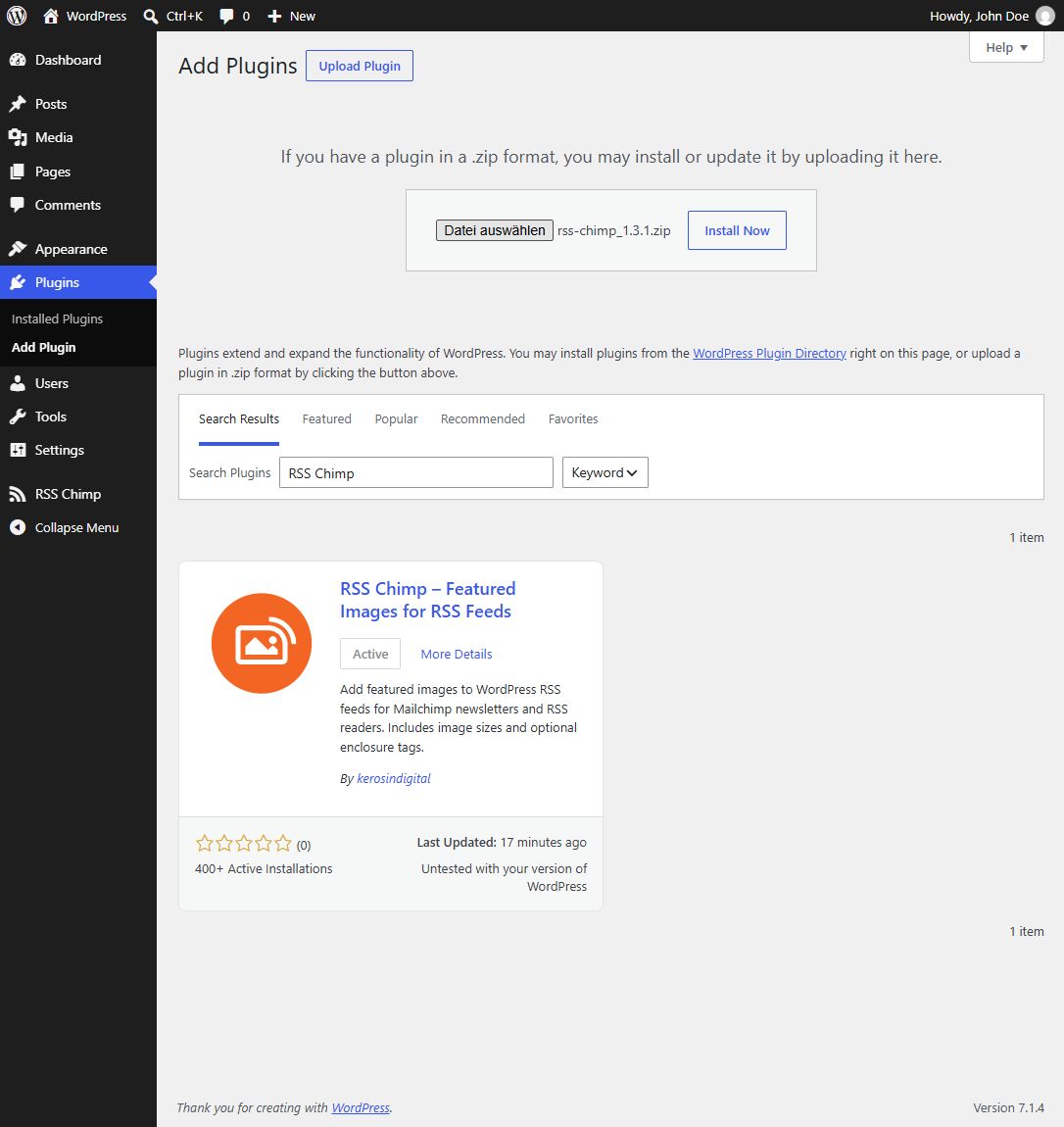
- In WordPress, open Plugins → Add New → Upload Plugin.
- Choose the Pro ZIP and click Install Now. If WordPress offers to replace an existing package, verify that it is the intended plugin and version.
- Activate Pro. If Free is still active, deactivate Free first without enabling its reset option.
Activate your license
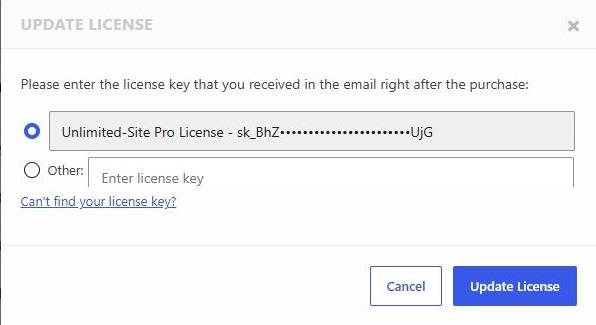
- Follow the license prompt shown by the installed package, or open RSS Chimp’s Account screen.
- Enter the license associated with your purchase and complete activation.
- Check that Pro settings, including the Feeds tab, are available.
Verify the installation
Open RSS Chimp → Start, confirm the version and check the feed URLs you recorded. Licensing screens can vary with the SDK version and account state. For a rejected key, check the purchase account and available activations, then contact support. Do not post the key in a public support topic.