
Available in Free and Pro. Channel metadata describes the feed as a whole. RSS Chimp can add copyright, an editorial contact and a technical contact. These fields are optional and do not require a channel logo.
Enter your channel details
- Open RSS Chimp → General → Options.
- Under Feed channel options, fill in Copyright, Editor and/or Webmaster.
- Use plain text rather than HTML. Leave fields blank if you do not want to publish them.
- Click Save Changes.
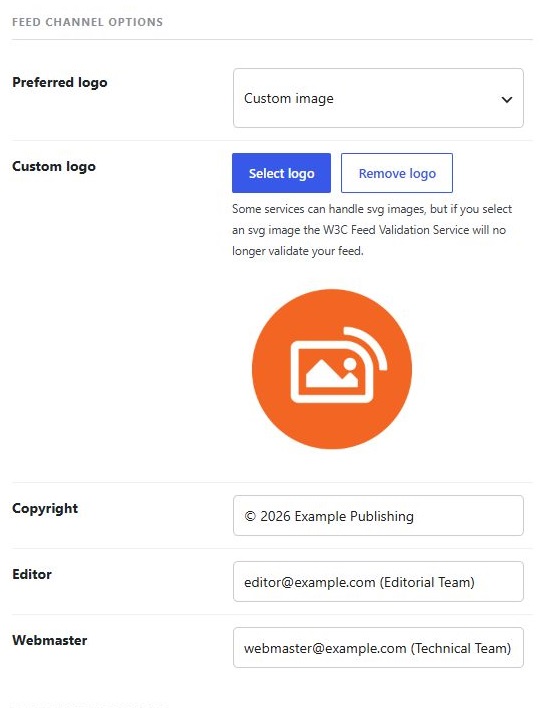
Examples
- Copyright:
© 2026 Example Publishing - Editor:
[email protected] (Editorial Team) - Webmaster:
[email protected] (Technical Team)
The email addresses become public in the feed. Use an address suitable for public contact. RSS Chimp adds the values as <copyright>, <managingEditor> and <webMaster>.
Verify the output
Open your feed’s XML source and search for those tags inside <channel>. A feed reader may hide this metadata in its interface even when it is present. If changes are missing, check the saved values and website/CDN caches. Ordinary Unicode text is supported; do not manually XML-escape an ampersand before entering it.