
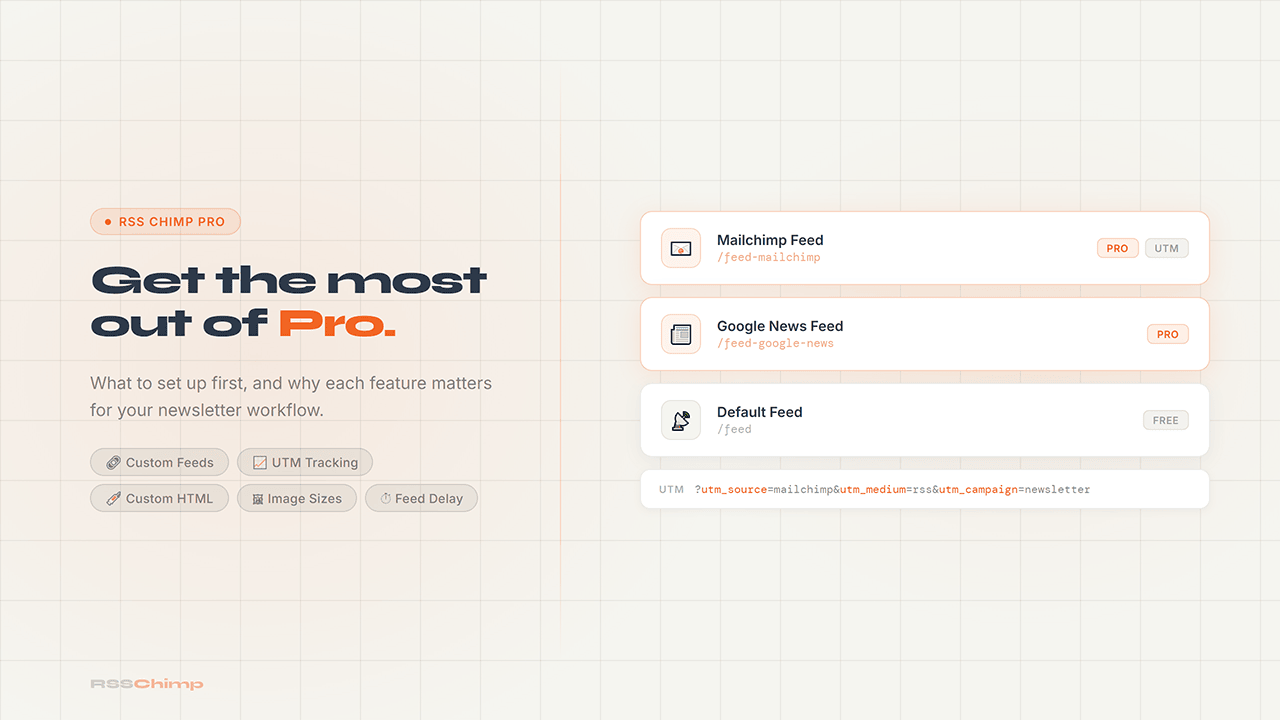
The best use of RSS Chimp Pro is to give each publishing workflow the feed settings it needs. Start with one working public feed, test it in the receiving service, and add more routes only when their settings need to differ. This guide covers RSS Chimp 1.3.1.
Create a feed for a specific workflow
Under RSS Chimp → Feeds, add a unique slug, enable the feed and save. Use the resulting URL shown on Start. One feed can supply newsletter excerpts while another supplies full articles to a reader. Each has its own image settings, URL parameters and optional HTML.
Custom feeds do not include per-row category, tag or post-selection controls. They use the site’s WordPress feed query. They are useful for different output formats, rather than automatically separating posts by topic. The custom-feed setup guide explains the controls and slug rules.
Choose an image size that already exists
Pro exposes image sizes registered with WordPress. For a newsletter, choose a size suited to the template and preview both landscape and portrait source images. The optional rss-chimp-medium size registers a 640 × 360 crop when enabled under General → Options. Registering it does not regenerate older uploads.
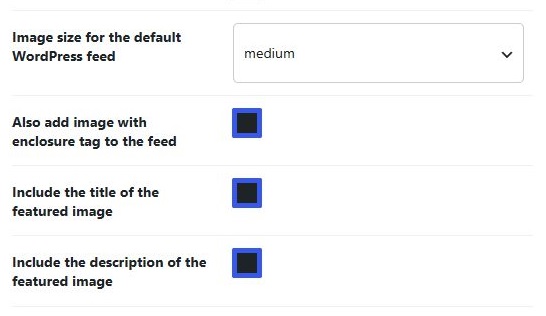
A featured image is separate from an image placed in a post’s body. Check that the intended post has one and that the selected image URL is publicly accessible. Use the featured-image troubleshooting guide if the XML or final display is wrong.
Use content controls deliberately
Choose excerpts when the feed should introduce articles and encourage a website visit. Choose full content when readers should be able to read the article in their preferred app. Newsletter templates may select different feed fields, so inspect the email as well as the XML.
Pro’s HTML fields add a message before or after feed content. They accept sanitized markup, not arbitrary executable code. Basic paragraphs and links work better across readers than elaborate layouts. A template that ignores the content field can omit the message entirely; see the custom HTML guide.
Label newsletter traffic
Enter a query string in the feed’s URL parameter field, such as utm_source=mailchimp&utm_medium=email&utm_campaign=blog_updates. These labels help analytics attribute visits; they do not count feed subscribers or guarantee complete click measurement. The UTM parameter guide covers testing.
Understand publication delay before enabling it
Feed delay holds newly published posts out of feed queries while leaving them visible on the website. It gives you an editing window before a service next fetches the feed, but cannot prevent scraping or recall a delivered email.
In 1.3.1, fixed-unit delay settings include one additional complete unit: 5 minutes makes posts eligible at about 6 minutes old, and 1 hour at about 2 hours old. Service polling and caches can add more time. Check the publication-delay guide and test a newly published post rather than assuming an exact delivery time.
Enable caching only with the required backend
The Pro feed cache reuses generated public XML. It requires a persistent WordPress object cache, such as Redis, Memcached or a compatible host service. A page-cache plugin alone does not provide that backend. Enable the option under General → Options and check the dashboard’s cache status.
Eligible entries normally live for up to one hour, or 30 seconds when publication delay is enabled. Relevant content and persisted setting changes invalidate them. Signed-in administrators and other ineligible requests bypass shared caching, so use the feed-cache guide when checking performance.
Finish with a real preview
Open every URL used by an external service, validate its public XML through the dashboard’s external W3C link and preview a newsletter or reader. For package installation and license activation, use the Pro installation guide. Check the current purchase or account screen for trial availability and terms.
Frequently asked questions
Do I need Free and Pro active together?
No. Use the appropriate package, and leave Reset all options on deactivation disabled when switching if you want to retain settings.
Can each feed use a different image size?
Yes. The default feed and Pro custom feeds have independent image-size settings. The required image file must also exist.
Does the object-cache option work with any caching plugin?
No. It requires a persistent WordPress object-cache backend. Page caching is a different layer.
Will Pro automatically configure my newsletter template?
No. RSS Chimp prepares feed output. The reader or email service controls its template, fetch schedule and delivery.