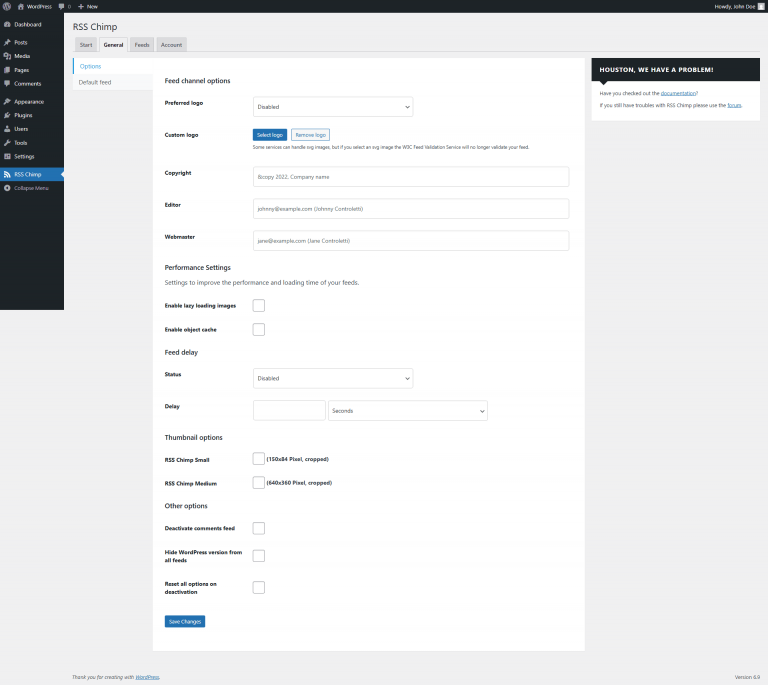
Go to RSS Chimp → Settings → General → Options
Under "Preferred logo", choose the option you want to use as your feed logo and save the settings. Specify a custom image with "Select logo" if necessary.

RSS Chimp allows you to define a logo for the RSS feeds of your WordPress site. This channel image helps brand your feed and makes it easier for readers and services to visually recognize your content in feed readers, aggregators, and newsletter tools. The logo of your feed (channel image) follows the RSS 2.0 specification.
You can choose how the logo for your feed should be generated:
Go to RSS Chimp → Settings → General → Options
Under "Preferred logo", choose the option you want to use as your feed logo and save the settings. Specify a custom image with "Select logo" if necessary.
You’ll find four options you can select:
No image is added as a logo to your RSS feed. Use this if you don’t want any channel image in your feed.
RSS Chimp uses your site’s favicon as the feed logo. The favicon is the small icon shown in browser tabs and bookmarks.
You can set or change it under Appearance → Customize → Site Identity → Site Icon.
RSS Chimp uses your theme’s site logo as the feed logo. This requires your theme to support a custom logo.
You can usually set this under Appearance → Customize → Site Identity → Logo.
Choose this if you want to use a custom image as your feed logo.
For best compatibility with feed readers and validators, use PNG or JPEG and avoid SVG.