Install from WordPress backend
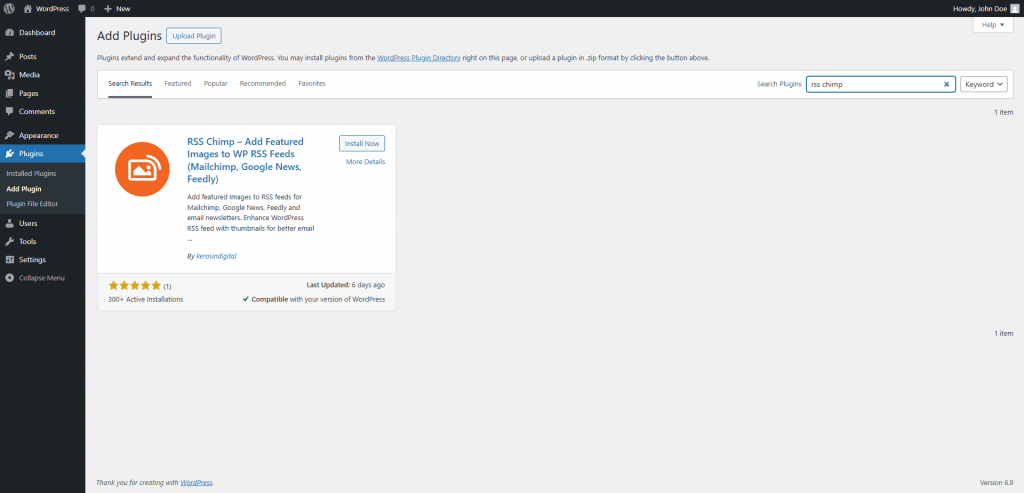
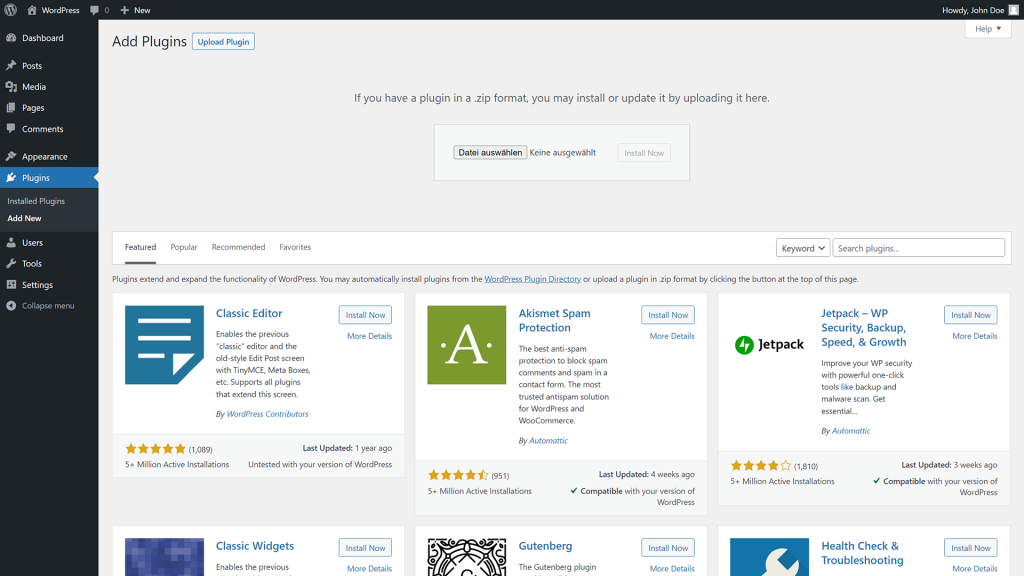
To install RSS Chimp directly from the WordPress backend login to your size and navigate to Plugins → Add New. Next, you need to download the plugin. To do this, search for “RSS Chimp” using the search box in the upper right corner. RSS Chimp should be first in the search results, click the button “Install Now” to download the plugin from the WordPress.org plugin repository and then click “Activate”.
- Navigate to Plugins → Add New
- Search for “RSS Chimp”
- Click “Install Now” on the RSS Chimp plugin “Activate”
Navigate to Plugins → Add New
Search for "RSS Chimp"
Click "Install Now" on the RSS Chimp plugin "Activate"
Install manually by uploading the plugin as a ZIP file
You can also install RSS Chimp on WordPress manually by uploading the plugin as a zip file. The first thing you need to do is download RSS Chimp. You can get the free version from the plugin repository on WordPress.org.
Next, navigate to Plugins → Add New and click on “Upload New” in the upper left corner. Now select the ZIP file you downloaded before and upload it to your WordPress site.
- Go to Plugins → Add New → Upload Plugin
- Select the ZIP file and click “Install Now” and click “Activate” once the installation is complete
Go to Plugins → Add New → Upload Plugin
Select the ZIP file and click "Install Now" and click "Activate" once the installation is complete
Register the installation of RSS Chimp Free
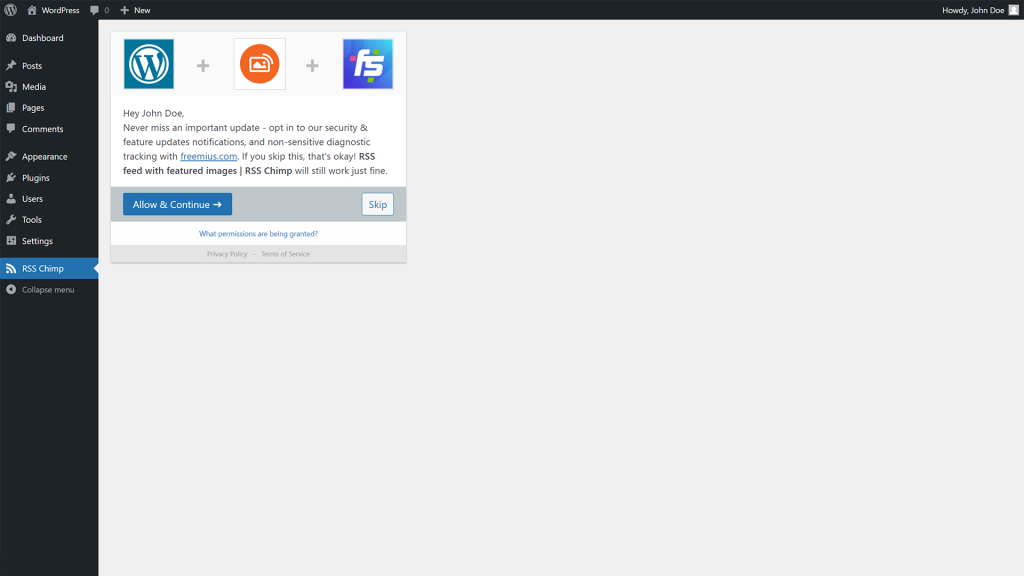
After installing and activating the plugin you are asked if you want to register RSS Chimp Free.
Click “Allow & Continue” to activate your free licence. With the free licence you also sign up for our newsletter, in which you get special offers and tips to use RSS Chimp the best. By registering your licence you also allow the collection of some non-sensitive diagnostic and statistical data which will help to improve the further development of the plugin.
If you click “Skip” you don’t allow us to inform you about new features and collect data. This way you are also can normally use the plugin as its features are not limted.
Click "Allow & Continue" to activate the licence for RSS Chimp Free.
Next steps after installing and activating RSS Chimp
After you have installed and activated RSS Chimp your site is ready to go. After activation, RSS Chimp will immediately add the featured images to your RSS feed. Check your feed, mostly it is acessible with https://example.com/feed on WordPress sites. After the activation process you should find something similiar in the <item> tag of the correspondending post:
<media:content url="http://example.com/wp-content/uploads/mypicture-150x150.png" medium="image" type="image/jpg" />
The featured image is missing? Go to Settings → Permalinks in the backend and just click “Save Changes”. If the featured is still missing please check your caching plugins and rebuild the cache.
RSS Chimp offers a whole range of settings to improve your feed and make it ready to take off with marketing automations.