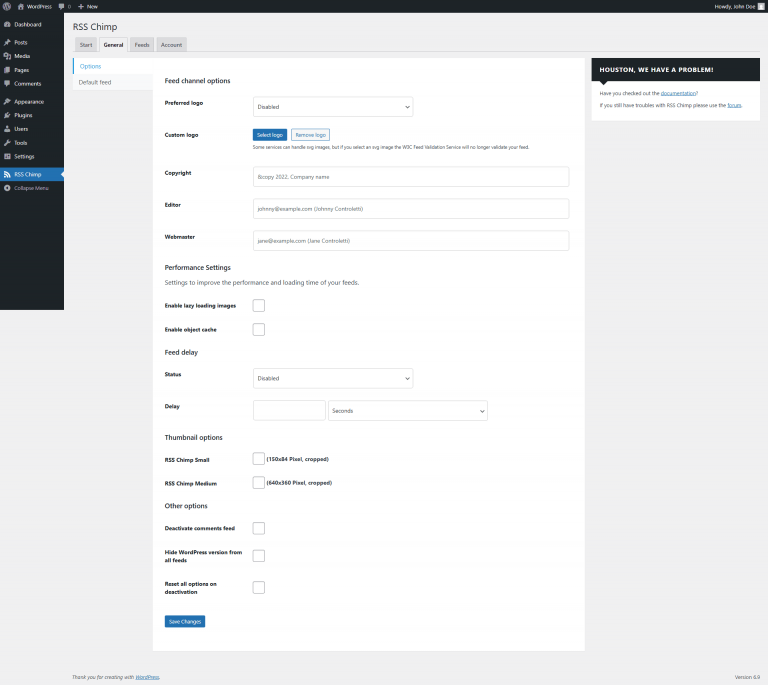
Go to RSS Chimp → Settings → General → Options
You’ll find three optional fields you can fill in. Only the fields you actually fill in will be included in your RSS feed.

RSS Chimp allows you to enhance your RSS feed with channel metadata such as copyright, managing editor, and webmaster information. These values give your feed more context and help readers and services understand who owns, edits, or manages the content. These tags follow the RSS 2.0 specification.
Go to RSS Chimp → Settings → General → Options
You’ll find three optional fields you can fill in. Only the fields you actually fill in will be included in your RSS feed.
You’ll find three optional fields you can fill in:
Displayed as: <copyright>Your Text</copyright>
Use this to declare ownership, licensing notes, or copyright statements.
Displayed as: <managingEditor>Name (Email)</managingEditor>
This is typically the editorial or content contact person. You may include name, email, or both.
Displayed as: <webMaster>Name (Email)</webMaster>
This is usually the technical contact responsible for maintaining the website or feed.
https://example.com/feed) to check the XML directlyRSS expects plain text. Avoid emoji or unusual symbols, as some feed readers may not display them correctly.