
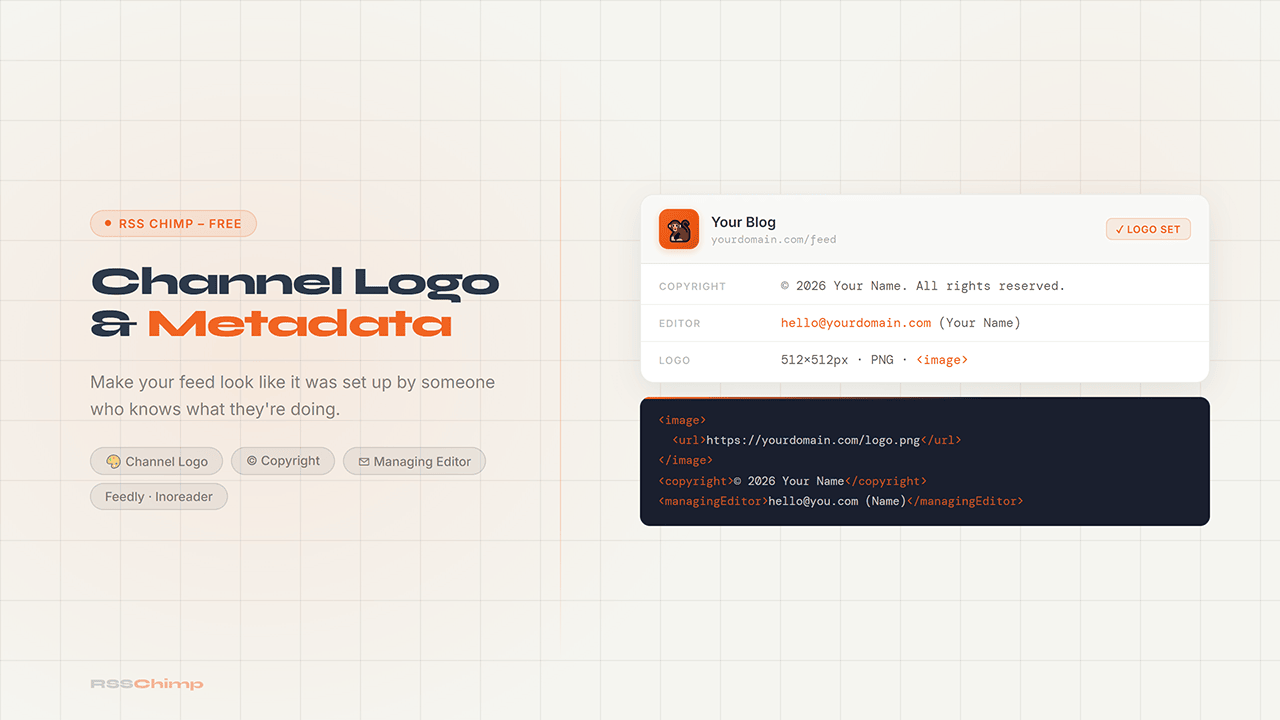
A channel logo represents a feed as a whole; a featured image belongs to an individual post. Channel metadata can identify the publisher and provide editorial or technical contact details. RSS Chimp Free and Pro let you configure these fields without editing a feed template.
What WordPress already provides
WordPress can add a channel image to RSS2 using an existing Site Icon. RSS Chimp gives you a choice between that icon, the theme’s custom logo, a separate media-library image or no channel logo. A logo is optional, and readers decide whether and where to show it. See the WordPress RSS2 Site Icon function.
Choose a logo in RSS Chimp
- Open RSS Chimp → General → Options.
- Under Feed channel options, find Preferred logo.
- Choose Favicon, Site logo, Custom image or Disabled.
- For a custom image, select it from the media library and click Save Changes.
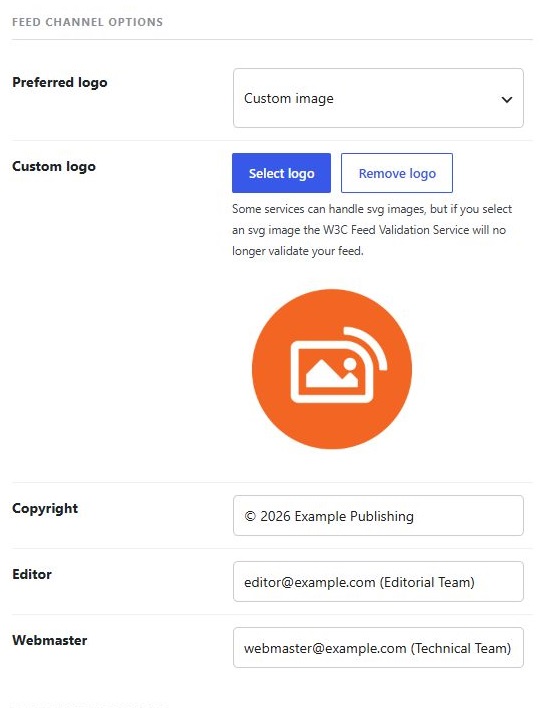
Use an image that remains recognizable at a small size. PNG or JPEG is a practical choice for broad compatibility. The Site logo option needs a theme with a configured custom logo; the Favicon option needs a configured Site Icon. A large original image alone does not ensure correct feed output or reader display.
RSS 2.0 defines maximum values of 144 for its image width field and 400 for its height field; it does not specify a universal 144 × 144 square display. Do not confuse the source upload dimensions with the declared channel-image dimensions. The RSS specification describes the fields. The logo support guide covers missing-logo checks.
Add optional copyright and contacts
The same settings page contains Copyright, Editor and Webmaster. These become channel-level XML fields:
<copyright>: a plain-text notice, such as© 2026 Example Publishing.<managingEditor>: an editorial email address, optionally followed by a name in parentheses.<webMaster>: a technical contact for feed issues.
Use an address suitable for public contact: it will be visible in the feed. Leave optional fields blank when unnecessary. Enter ordinary text, including Unicode characters; do not add HTML or manually escape ampersands. These fields provide information, but do not enforce attribution or configure an email template. See the channel metadata guide.
Inspect the XML before checking a reader
Open the enabled feed from RSS Chimp → Start. Look inside <channel> for the image and metadata elements. Check that the image URL opens without a login. A reader can cache a logo or choose a different presentation; there is no guaranteed refresh time across services.
Use the dashboard link to submit a public feed to the external W3C Feed Validation Service. RSS Chimp does not include a separate validator screen, and optional metadata does not guarantee that the entire feed is valid. Other plugins and content can affect the final response. Follow the feed validation guide if it reports errors.
Frequently asked questions
Does WordPress always need a plugin to add a channel logo?
No. WordPress can include a configured Site Icon in RSS2. RSS Chimp adds explicit choices for the source image and optional channel metadata.
Is the channel logo the same as a post’s featured image?
No. The logo identifies the entire feed. Featured-image metadata belongs to individual post items.
Are the contact details private?
No. Values entered as editor or webmaster contacts are published in the feed. Use an appropriate public contact address.
Will every reader show the logo immediately?
No. Reader support and caching vary. First verify the image element and public image URL in the raw feed.