
A dedicated RSS feed lets you prepare blog content for a newsletter without changing the feed used by other readers. With RSS Chimp Pro, each custom feed has its own image size, excerpt or full-content setting, URL parameters and optional HTML. Mailchimp remains responsible for the email template and sending schedule.
Start with one public feed
Use an active Pro installation and a published post with a featured image. The feed and image URLs must be reachable by Mailchimp without a login. A local address such as wordpress.local is suitable for checking XML on your computer, but an external service cannot fetch it.
- Open RSS Chimp → Feeds.
- Enter a unique slug such as
newsletter, without a slash or full URL, and set its status to Enabled. - Choose the image and content settings, then click Save Changes.
- Open RSS Chimp → Start and use the displayed custom-feed URL. Do not construct the URL from the slug yourself; the route depends on WordPress’s permalink configuration.
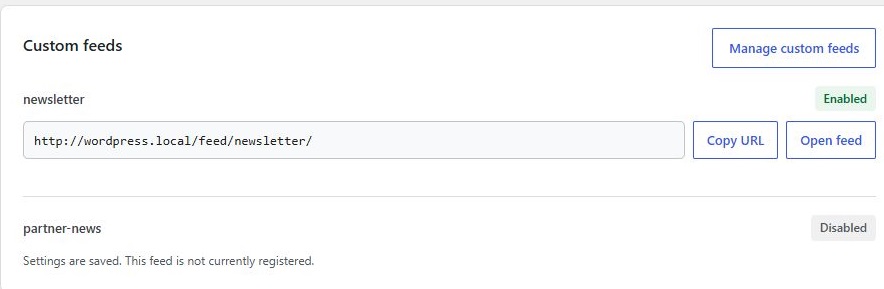
Custom feeds use the WordPress feed query. RSS Chimp 1.3.1 does not provide category, tag or post-selection controls for each feed row. A separate URL gives you independent presentation settings; it does not automatically create a topic-specific feed. See the custom-feed setup guide.
Choose images and content for your template
Select a WordPress image size that fits your email layout and check a real post. The optional rss-chimp-medium size is a 640 × 360 crop; it must be enabled in Pro before use, and older uploads may need regenerated thumbnails. A receiving template can still resize or crop the image.
Choose an excerpt if the email should introduce the article and link to your website, or full content if subscribers should read it in the email. This setting controls the feed output, while Mailchimp’s selected RSS fields determine what the email actually shows.
Label newsletter visits
In the feed’s URL parameter field, enter one query string, without a full destination URL:
utm_source=mailchimp&utm_medium=email&utm_campaign=blog_updatesThese parameters label visits to your website. They do not measure subscriber counts or replace Mailchimp’s own click reporting. Coordinate them with any tracking added by Mailchimp; the UTM parameter guide explains how to check the resulting links.
Connect and preview in Mailchimp
Mailchimp’s current guidance starts at Automations → Flow templates → Share blog updates via RSS. Enter your public URL in RSS Feed URL, then configure the audience, schedule and template. Availability and labels can differ by account; follow Mailchimp’s setup instructions if your screen differs.
RSS Chimp provides <media:content> metadata for featured images. Mailchimp documents *|RSSITEM:IMAGE|* for supported Media RSS setups; use it in the template’s RSS item loop where appropriate. The official RSS merge-tag reference describes the fields. An image in the XML does not automatically appear in every template.
Check the result before a live send
- Inspect the XML for the intended posts, image URLs and tracked item links.
- Validate the public URL with the external W3C service linked from RSS Chimp’s dashboard; there is no separate built-in validator screen.
- Preview recent posts in Mailchimp and send a test email to an address you control.
- Check content, images and links on desktop and mobile. Account for publication delay, caches and Mailchimp’s polling schedule.
If the image is present in XML but missing in the preview, investigate the template and receiving service. If it is absent from XML, start with the featured-image troubleshooting guide.
Frequently asked questions
Do I need Pro to create a separate newsletter feed?
Yes. RSS Chimp Pro creates custom feed routes. Free can add featured-image metadata to the existing WordPress feed.
Can the newsletter feed contain only one category?
There is no category selector for individual custom feeds in 1.3.1. A custom slug alone does not filter posts by topic.
Does RSS Chimp send the emails?
No. It prepares the feed; Mailchimp manages recipients, templates, scheduling and delivery.
Which URL should I enter in Mailchimp?
Copy the enabled feed’s URL from RSS Chimp → Start. Use a publicly accessible URL rather than a local development address.