
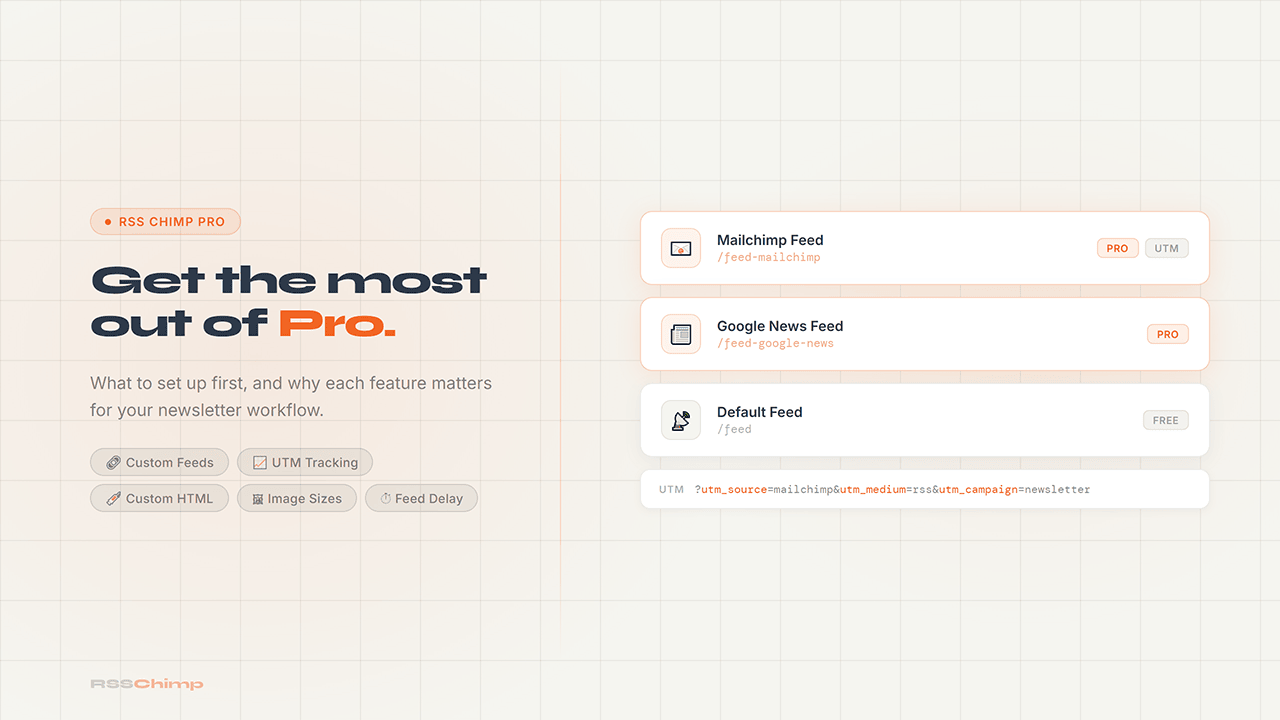
RSS Chimp Pro unlocks nine features on top of the free version. Some of them you’ll set up once and never touch again. Others change how your entire newsletter workflow operates. Here’s where to start.
Custom Feed URLs
This is the one most people underestimate. The free version gives you one feed at yourdomain.com/feed. Pro lets you create additional feeds at any slug you choose, each with its own independent settings.
The practical use case: you’re sending to Mailchimp and also syndicating to Google News or Feedly. Those platforms want different things. Mailchimp works best with a short excerpt and a large image. Google News wants full post content and may not need custom HTML. With a single feed, you’re always compromising. With two custom feeds, each platform gets exactly what it needs.
Go to RSS Chimp → Custom Feeds → Add New Feed and set a slug like /feed-mailchimp or /feed-google-news. From there, each custom feed has its own image size, content length, custom HTML, and URL parameters. Completely independent from your default feed and from each other.
Image Sizes
The free version gives you thumbnail and medium. Pro adds every image size registered in WordPress, including large, full, any WooCommerce sizes, theme-specific sizes, and one new size RSS Chimp registers itself: RSS Chimp Medium at 640×360px.
That 640×360 size is worth using if you’re sending to Mailchimp or Kit. Email clients render images at a fixed container width, and a landscape crop at that ratio fills the space cleanly without distortion. If your featured images are mostly portrait or square, test a few before committing.
You set the image size per feed, under RSS Chimp → [your feed] → Image Settings.
UTM Tracking
Every link in your RSS feed can carry UTM parameters automatically. Set them once under RSS Chimp → [your feed] → URL Parameters and every post link in that feed gets tagged. No manual work per post.
The setup that works well for most newsletters:
utm_source: the feed name or platform (mailchimp,kit,feedly)utm_medium:rssutm_campaign: something likenewsletterorrss-feed
Once it’s running, traffic from your newsletter shows up correctly labeled in GA4. You’ll know which posts drive clicks, which subjects outperform, and whether your RSS subscribers actually read what you send.
Custom HTML Injection
Pro lets you insert HTML before or after each post entry in the feed. That means every automated email or feed reader item gets that content appended automatically.
Common uses: a short CTA at the end of every post, a sponsor message, a link to your archive, a referral prompt. You write it once, it goes everywhere.
The field is under RSS Chimp → [your feed] → Custom HTML. It accepts any HTML that an email client can render. Inline styles work, external CSS doesn’t. Test in your actual email platform before setting it live.
Content Length Control
Free gives you the default WordPress behavior, which is typically full post or whatever your Reading settings specify globally. Pro lets you set full post or excerpt independently per feed.
The reason this matters: excerpt feeds are faster to scan in a feed reader and create a reason to click through to your site. Full-post feeds work better for readers who prefer to stay in their email client or reader. If you’re running multiple feeds for different audiences, you can set each one appropriately.
Post Publication Delay
When you publish a post, it appears in your feed immediately by default. Pro adds a delay before a post becomes visible in the feed, configurable in seconds, minutes, or hours.
Two good reasons to use this. First, it gives you a window to catch mistakes before the feed gets picked up by email platforms. A typo in the first paragraph is one thing on your site, where you can fix it quietly. In an email that’s already sent to 5,000 people, it’s a different problem. Second, it reduces how quickly content scrapers can pull your posts before you’ve had a chance to index them properly.
Set it under RSS Chimp → Settings → General → Feed Delay. Most publishers find 15 to 30 minutes is enough to catch obvious errors.
Object Cache
If your site gets a lot of traffic and your RSS feed is slow to generate, object caching stores the feed query result at the object level so WordPress doesn’t rebuild it from scratch on every request.
Most publishers don’t need this. If you’re on a shared host with a small to medium audience, the free version performs fine. If you’re on a managed WordPress host like Kinsta or WP Engine and your feed shows up in profiling tools as a slow query, enable it under RSS Chimp → Settings → General → Object Cache.
What to Set Up First
If you’re in the first day of your trial, start here:
- Create one custom feed for your main email platform. Give it the correct slug, set the image size, and connect it in Mailchimp, Kit, or whatever you’re using. This alone justifies Pro for most publishers.
- Add UTM parameters to that feed so you have click attribution from day one.
- Set a publication delay of 15 to 30 minutes as a safety net.
Custom HTML and content length control you can come back to once the core setup is working.
Start your free 14-day Pro trial — no credit card required.
FAQ
What does RSS Chimp Pro add over the free version?
Nine features: custom feed URLs, multiple custom feeds, all WordPress image sizes, content length control per feed, custom HTML injection, UTM/URL parameter tracking, post publication delay, object caching, and the RSS Chimp Medium 640×360px image size. All free features are included.
Do I need a credit card for the RSS Chimp Pro trial?
No. The 14-day trial starts without any payment details. If you continue after the trial, you choose a plan. If not, the site reverts to the free version automatically.
How do I create a custom feed in RSS Chimp Pro?
Go to RSS Chimp → Custom Feeds → Add New Feed. Set a slug, configure image size, content length, and any custom HTML or URL parameters. The feed is immediately available at yourdomain.com/your-slug. Connect it to your email platform the same way you would any RSS feed URL.
Can I have different image sizes on different feeds?
Yes. Image size is set per feed. Your default feed can use thumbnail, your Mailchimp feed can use RSS Chimp Medium (640×360), and a separate feed for feed readers can use large or full. Each feed is independent.
What is the RSS Chimp Medium image size?
A 640×360px landscape crop that Pro adds to WordPress. It’s cropped, not scaled, so the image always fills the exact dimensions. Useful for email clients that render content at a fixed container width.
How does UTM tracking work in RSS Chimp?
You enter your UTM parameters once per feed under URL Parameters. RSS Chimp appends them to every post link in that feed automatically. No per-post work, no plugins needed beyond RSS Chimp itself.
What does the post publication delay actually prevent?
It creates a gap between when you publish a post and when it appears in your feed. Email platforms that poll your feed during that window won’t pick up the post yet, giving you time to catch typos or other errors before an email goes out.
Is object caching necessary?
For most sites, no. It becomes relevant on high-traffic WordPress installations where the RSS feed query is measurably slow. If your host offers server-level caching already, you may not see a difference. Enable it if you’re seeing performance issues specifically tied to feed generation.