
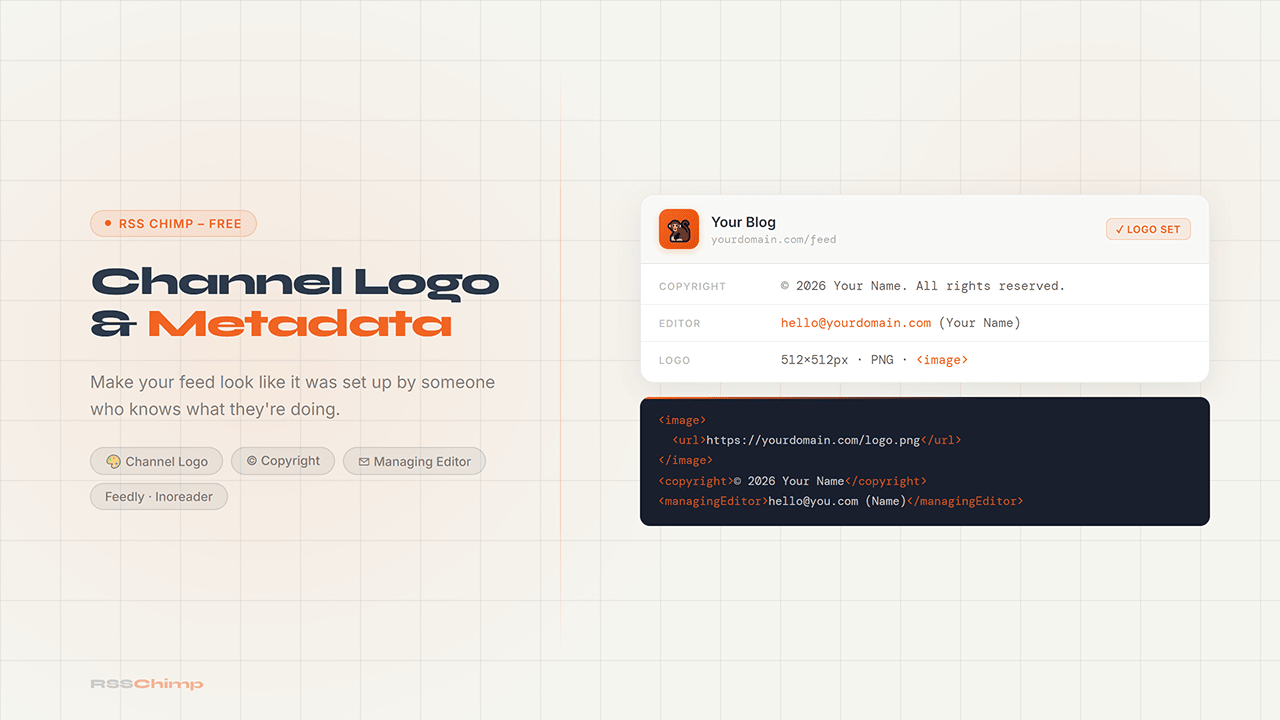
Most WordPress sites publish RSS feeds without a channel logo, copyright notice, or editor contact. These fields take two minutes to fill in and make your feed look like it was set up by someone who knows what they’re doing.
The Channel Logo
It’s the <image> element that attaches a logo to your feed channel. Not to individual posts, but to the feed itself. Feed readers like Feedly and Inoreader pull this and display it next to your feed name in their sidebar. Without it, your feed shows up as a grey placeholder or a generic globe icon.
It looks like this in the feed source:
<channel>
  <title>Your Blog</title>
  <image>
    <url>https://yourdomain.com/logo.png</url>
    <title>Your Blog</title>
    <link>https://yourdomain.com</link>
  </image>
</channel>
WordPress doesn’t add this tag by default. With RSS Chimp, you upload the image once in Settings → RSS Chimp → Channel Branding and it’s written into every feed response automatically.
For the image itself: use something square, at least 512×512px, with legible branding at small sizes. Feed readers scale it down aggressively. Your favicon won’t hold up, a proper logo will.
Channel Metadata
Three fields that almost no WordPress site fills in, even though they’ve been part of the RSS spec since 2.0:
<copyright> is a plain-text copyright notice. Something like © 2026 Your Name. All rights reserved. It shows up in some feed readers and signals that the feed is actively maintained.
<managingEditor> is the email of whoever is responsible for editorial content, formatted as [email protected] (Your Name). Some aggregators use this for attribution. If someone republishes your content, at least the correct name is attached to the feed.
<webMaster> is the technical contact for feed issues. Same format. Most publishers either use the same address as Managing Editor or leave this blank entirely.
None of these affect delivery or display in email platforms. They live in the channel element, not in individual post entries. But they’re part of a complete, well-formed feed, and they matter for attribution if your content gets picked up by aggregators.
In RSS Chimp, all three are under Settings → RSS Chimp → Channel Metadata.
Checking That It Worked
Open your feed URL directly at yourdomain.com/feed and look at the page source. The <image> block should appear near the top of the <channel> element, and your copyright and editor fields should be visible just below the channel title.
RSS Chimp also has a built-in feed validator under Settings → RSS Chimp → Feed Validator. It runs your feed against the W3C validation service and flags any problems. A properly configured feed with channel logo and metadata should pass clean.
If you want to see the logo in context, add your feed URL to Feedly as a new source. There’s sometimes a short delay before it picks up changes, but within a day or two your logo should appear in the sidebar next to the feed name.
Download RSS Chimp free on WordPress.org or explore the Pro features.
FAQ
What is the RSS channel logo?
It’s the <image> element in the RSS channel spec. A logo that represents the feed itself, not individual posts. Feed readers like Feedly and Inoreader display it next to your feed name. WordPress doesn’t include it by default; RSS Chimp adds it from the plugin settings.
What size should the RSS channel logo be?
Upload at least 512×512px. The RSS spec caps display at 144×144px, but feed readers scale to various sizes, so a larger source image holds up better. Square format, with branding that’s readable at small sizes. Not a favicon.
What does managingEditor mean in an RSS feed?
It’s an optional channel field containing the email address of whoever is responsible for the feed’s content. The format is [email protected] (Full Name). Some aggregators use it for attribution, which matters if your content gets picked up elsewhere.
Does channel metadata affect how emails look in Mailchimp or Kit?
No. Email platforms read individual post entries for newsletter content. Channel-level fields like copyright and editor contact don’t affect email delivery or appearance.
Does WordPress add a channel logo to RSS feeds by default?
No. The default WordPress feed doesn’t include the <image> channel element. You need a plugin to add it. RSS Chimp does this from the plugin settings without any code changes.
How do I verify the channel logo is working?
Open your feed URL in a browser and check the source for an <image> block near the top of the channel. Or add your feed to Feedly as a new source. It may take up to 24 hours for Feedly to re-crawl and display the logo.
Can I use my site’s favicon as the channel logo?
You can, but favicons are usually 32×32px or 64×64px and don’t hold up well in feed readers. A dedicated square logo at 512×512px is a better choice.
Do I need to edit code or theme files to add RSS channel metadata?
No. RSS Chimp handles all of this from the plugin settings page. No functions.php edits, no template files.